On this page
How to Use Synology VPN
Welcome to our visual User Guide for Synology VPN – your comprehensive companion to effortless setup and usage. Synology VPN offers a secure VPN connection using Synology network devices. Our guide combines crystal-clear instructions with illustrative images, ensuring a seamless experience.
Easily establish a private, encrypted connection over the internet. Our guide simplifies the process with step-by-step visuals. Access your network resources remotely, browse securely, and encrypt online activities – perfect for individuals and businesses needing secure remote connections.
Discover the power of Synology VPN through our concise guide, making complex setup a thing of the past.
Synology VPN Set Up
You received a website address, your username, and password. Now what?
Keylink IT SnapGuide
“Keylink IT SnapGuides” are succinct IT guides that condense complex procedures into easy, quick references, offering step-by-step instructions and insights for various tasks, troubleshooting, and technologies.
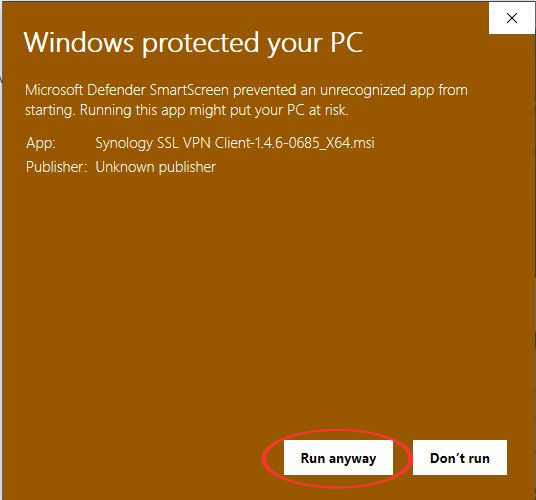
1. Access the provided website URL and use the login credentials given to log in. 2. Download the attachment, save it, then open. 3. On the “Windows protected your PC” page, select More info, then Run anyway. 4. The Synology SSL VPN Client Setup will popup – follow the prompts and install the client. 5. Once it finished installing, go back to the website address and create a pincode (12345678 is recommended). 6. Select all checkboxes and then click on Connect. You are now connected to the VPN.
Keylink IT Visual Manual
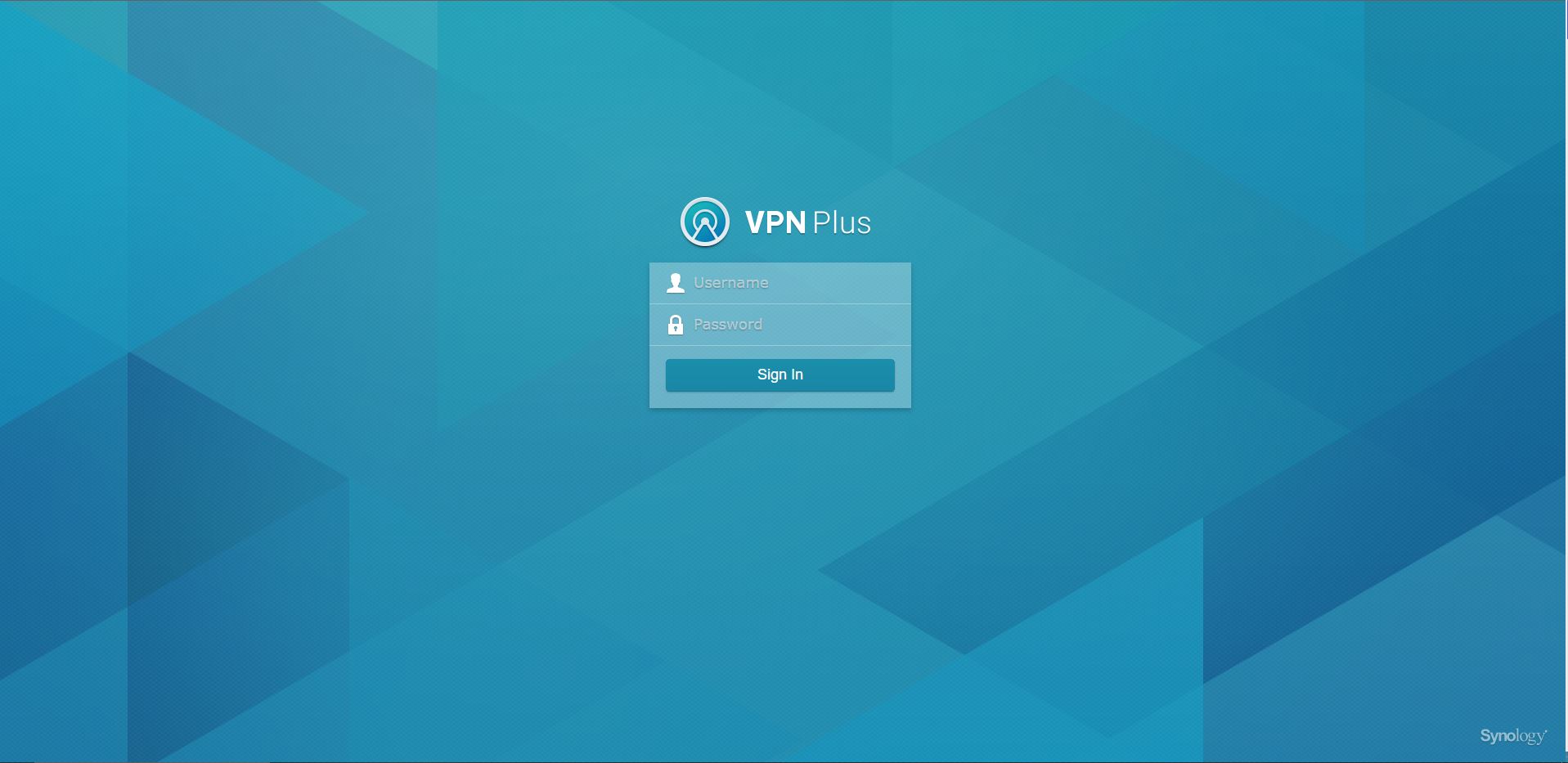
1. Open the website address. 2. Enter in the username and password provided to you.
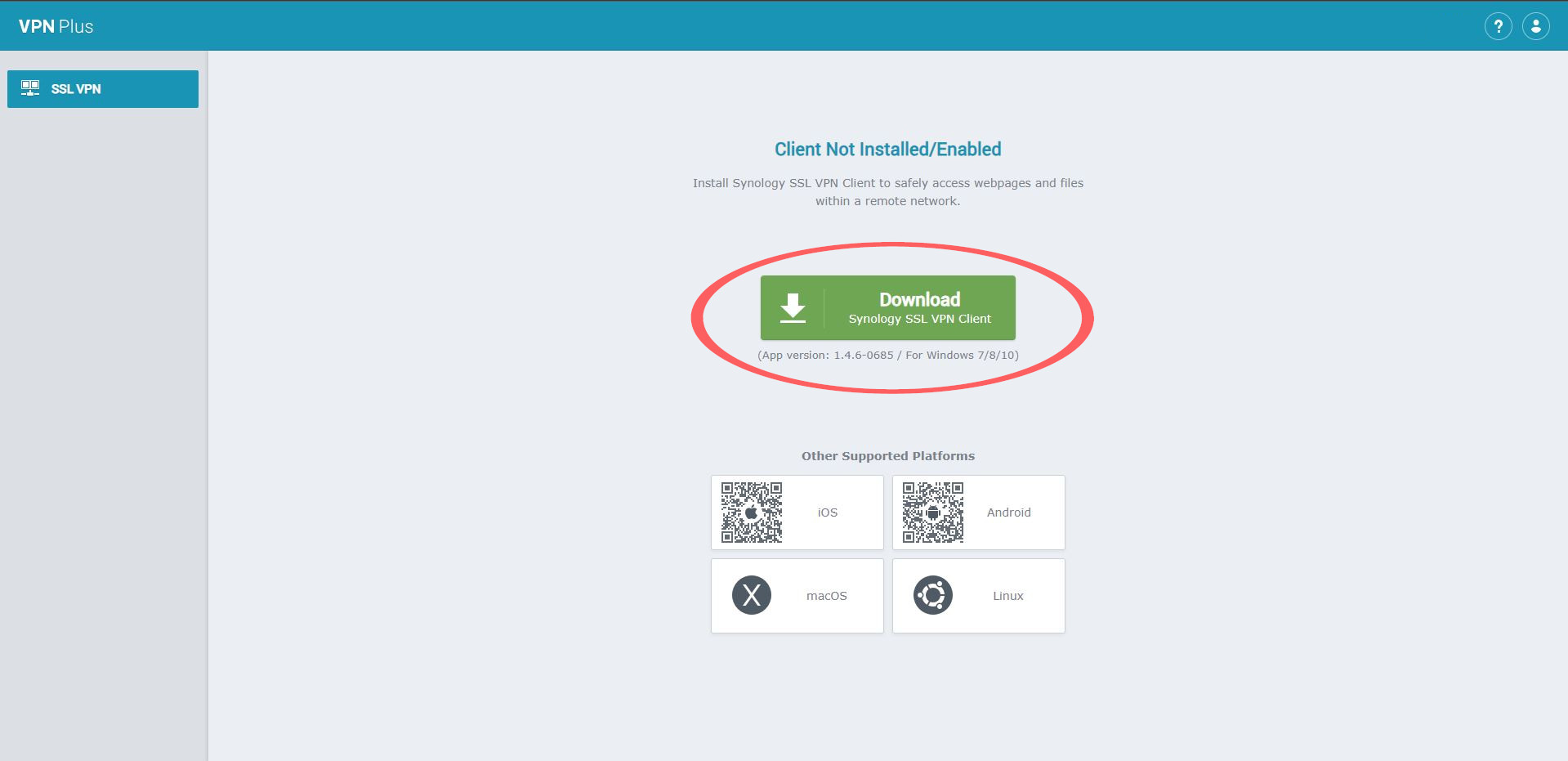
3. Select Download
4. A pop-up will appear – select save.

5. Open the download and select more info
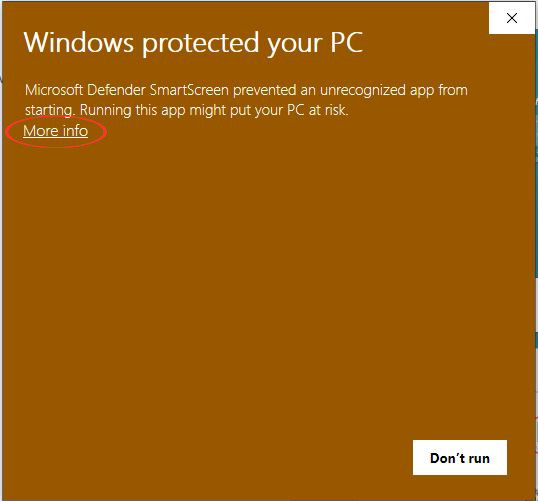
6. Select Run anyway
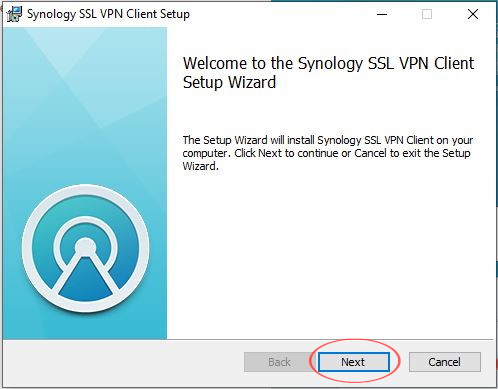
7. Select Next
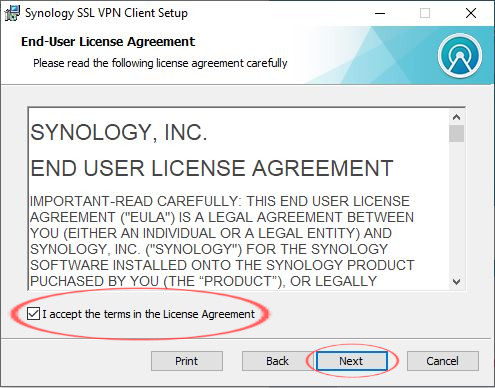
8. Select I accept the terms in the License Agreementthen select Next
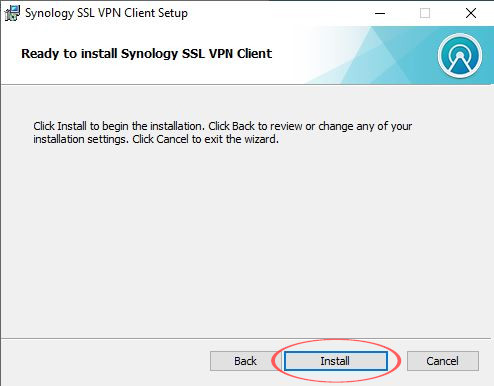
9. Select install
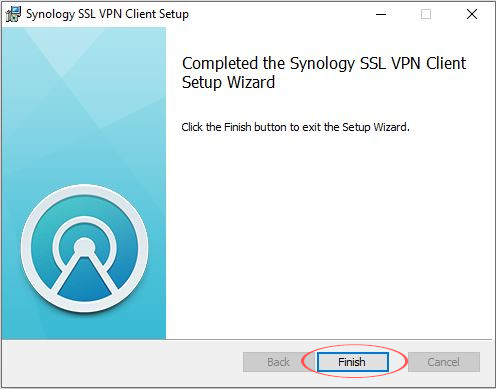
10. Once it’s installed, this pop-up will appear, select Finish.
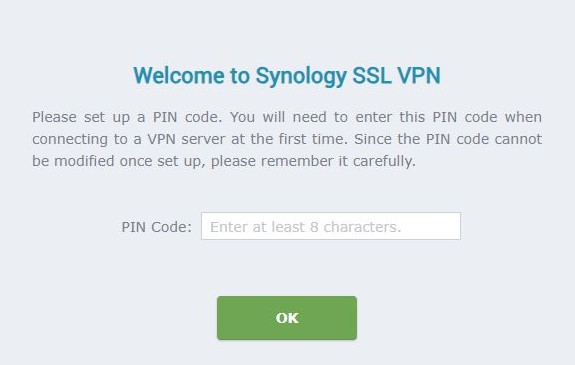
11. Go back to the web link where you downloaded the VPN (the same web link that was provided along with your username and password). 12. You will be prompted to create a pincode. We recommend using 12345678. Enter in the pincode and select OK.
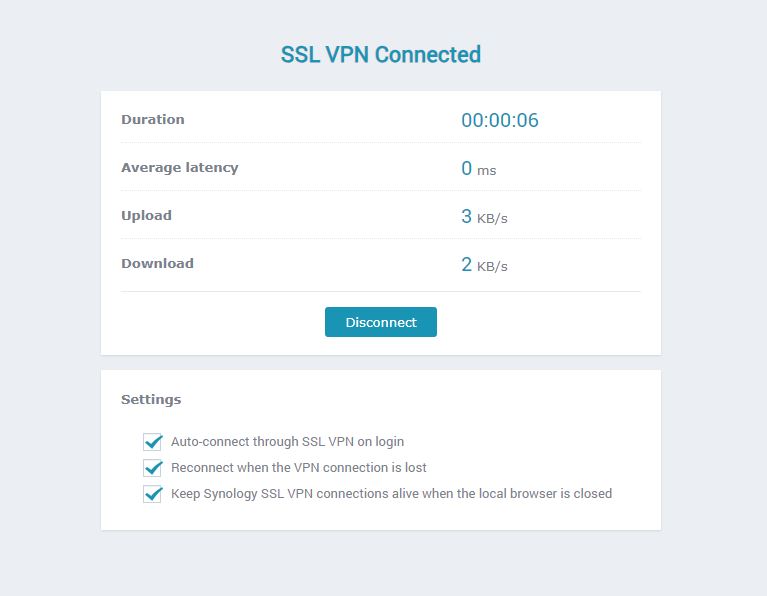
The screen will now display the following information. 13. Next, check all the boxes and select Connect
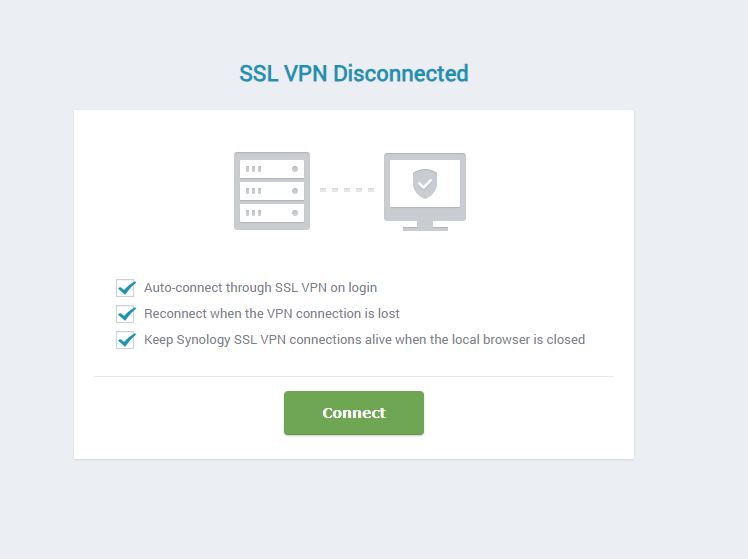
The screen will now show that you are connected to the VPN.