On this page
How to Install Microsoft Teams
Having the Teams desktop app is of paramount importance for all employees within a company. Unlike using Teams solely through the web browser, the desktop app offers a comprehensive and streamlined experience that fosters enhanced collaboration and productivity. With its seamless integration of features like chat, video conferencing, file sharing, and real-time collaboration on documents, the desktop app ensures a more fluid and efficient workflow. Moreover, it provides offline access to messages and files, allowing employees to stay connected even without an active internet connection. By utilizing the Teams desktop app, employees can harness the full potential of this powerful communication platform, enabling them to work together seamlessly and achieve their goals more effectively.
How to Install Microsoft Teams on Desktop
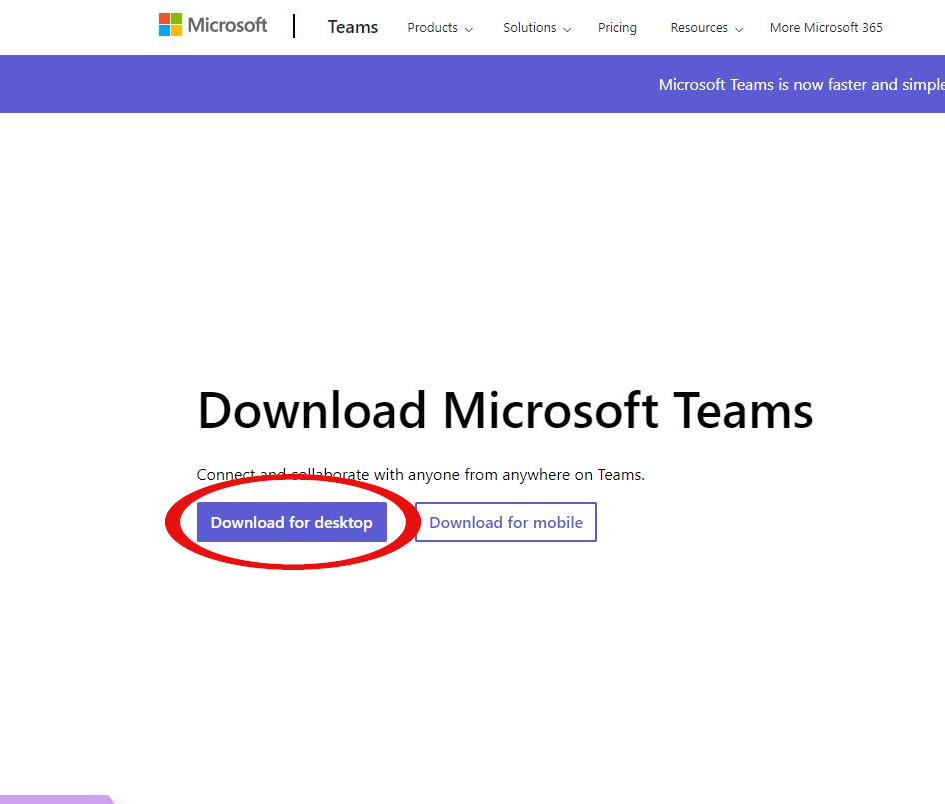
1. Visit this link and select Download for Desktop
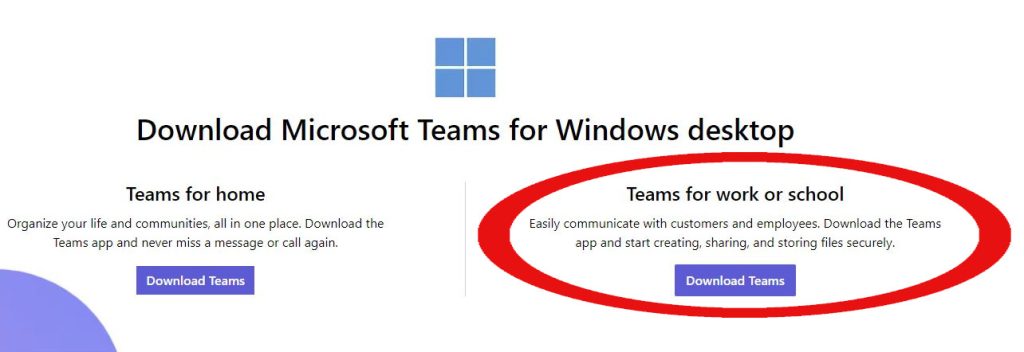
- Select Download Teamsfor Teams for work or school.
The application will download.
3. Once the download is complete, click on the download to initiate the installation.
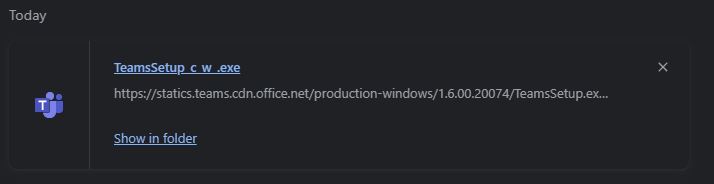
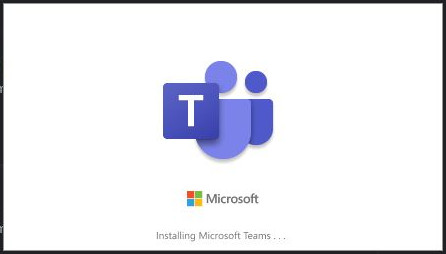
The Microsoft Teams Application will now install.
4. Sign In
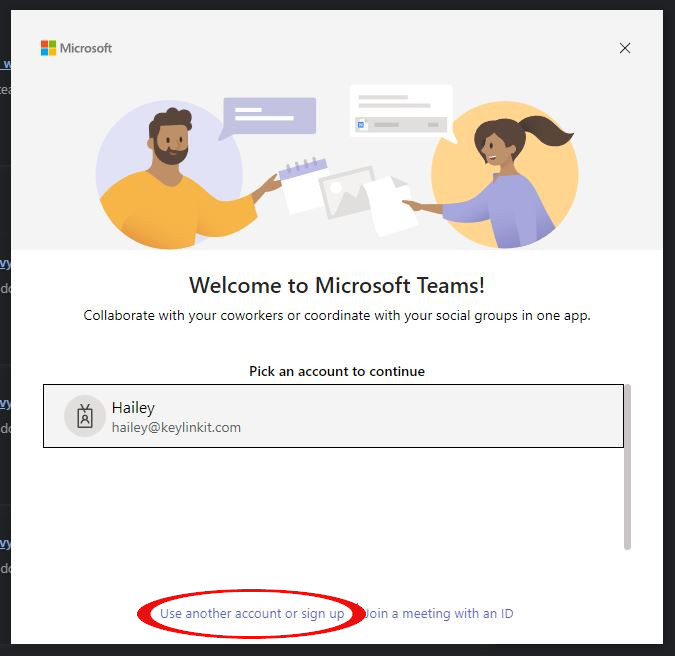
If your work email is already associated with this computer, it will be displayed for direct sign-in.
Otherwise, select Use another account or sign upto access your Microsoft 360 account.
How to Install Microsoft Teams App on iPhone or iPad
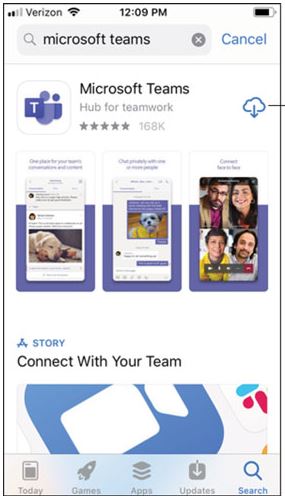
- Access the Apple App Store on your iOS device.
- Utilize the Search icon within the store and enter “Microsoft Teams” in the search field. Ensure you select the official Microsoft app.
- Click the download link to initiate the app installation on your device.
- Upon completion of the download and installation, tap the “Open” button to launch the app.
How to Install Microsoft Teams App on Android Phone or Tablet
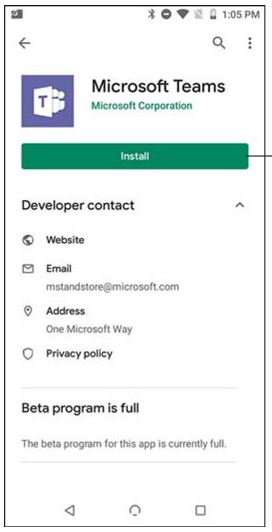
- Launch the Google Play Store on your Android device.
- Click the Search icon within the store and input “Microsoft Teams” into the search field. Ensure you select the official Microsoft app.
- Press the “Install” button to commence the app installation on your device.
- After the app completes downloading and installing, tap the “Open” button to initiate the app.
How to Sign Into the Microsoft Teams App on Mobile Devices and Tablets
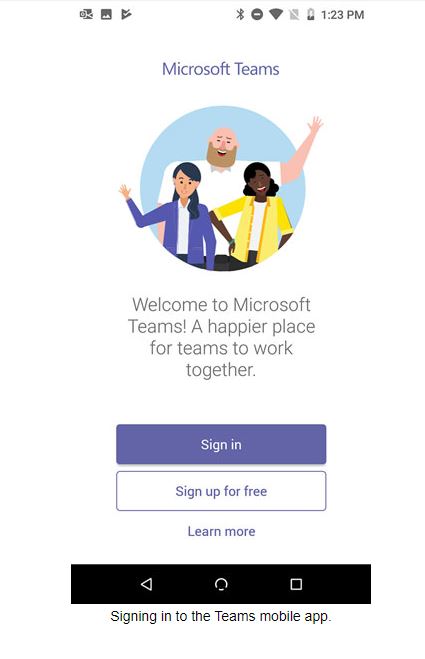
Open the newly downloaded Microsoft Teamsapp and sign in using your Microsoft 360 login information.