On this page
This guide walks you through downloading, installing, and setting up the Lorex Cloud Mobile app on your smartphone or tablet for remote viewing and management of your DVR security cameras.
Step 1: Download the Lorex Cloud Mobile App
Download the official Lorex Cloud mobile app on your smartphone or tablet from the appropriate app store:
- For Android Devices: Search for “Lorex Cloud” in the Google Play Store or visit: https://play.google.com/store/apps/details?id=com.flir.consumer.flir.lorexcloud&pcampaignid=web_share
- For iOS Devices (iPhones): Search for “Lorex Cloud” in the App Store or visit: https://apps.apple.com/us/app/lorex-cloud/id1346653498
Download and install the app on your mobile device.
Step 2: Initial App Launch
When launching the Lorex Cloud app for the first time:

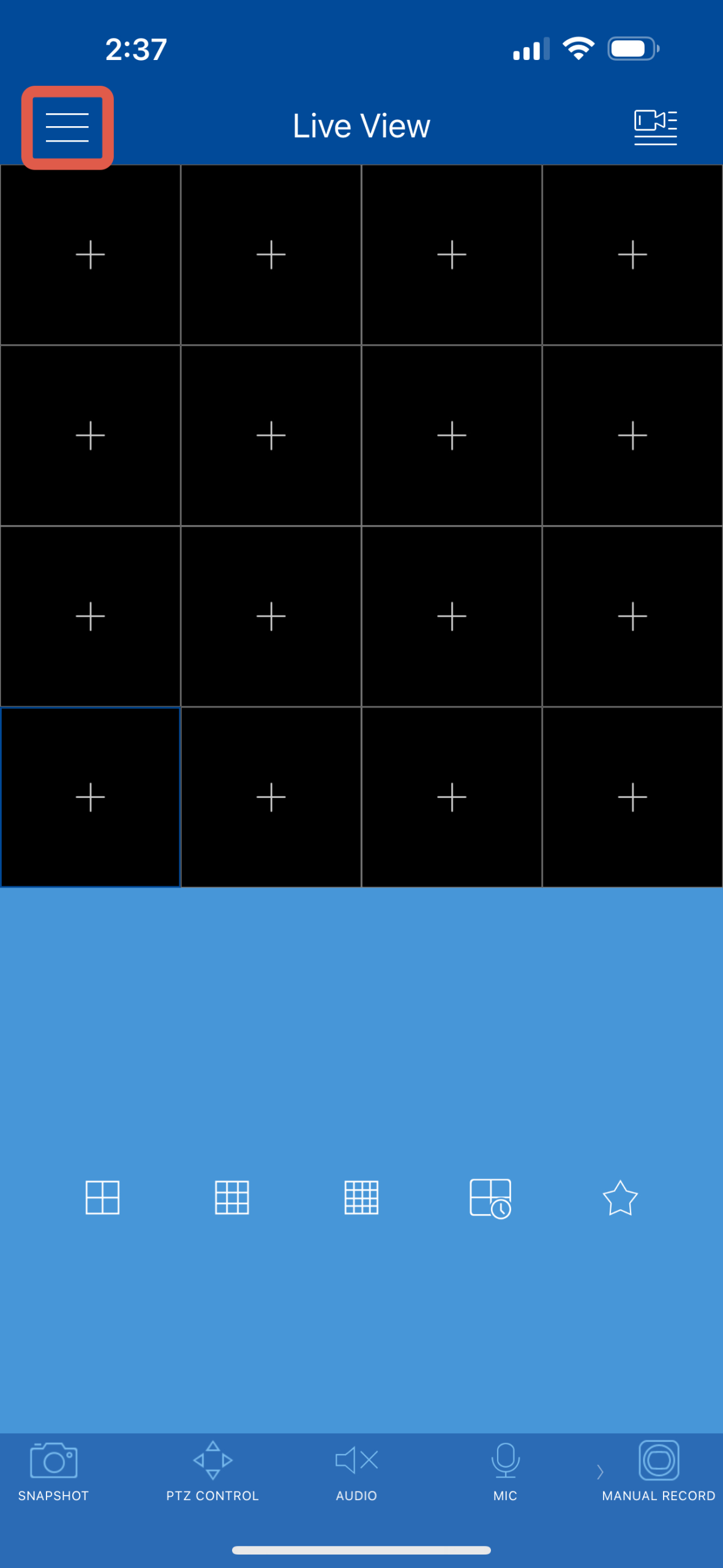
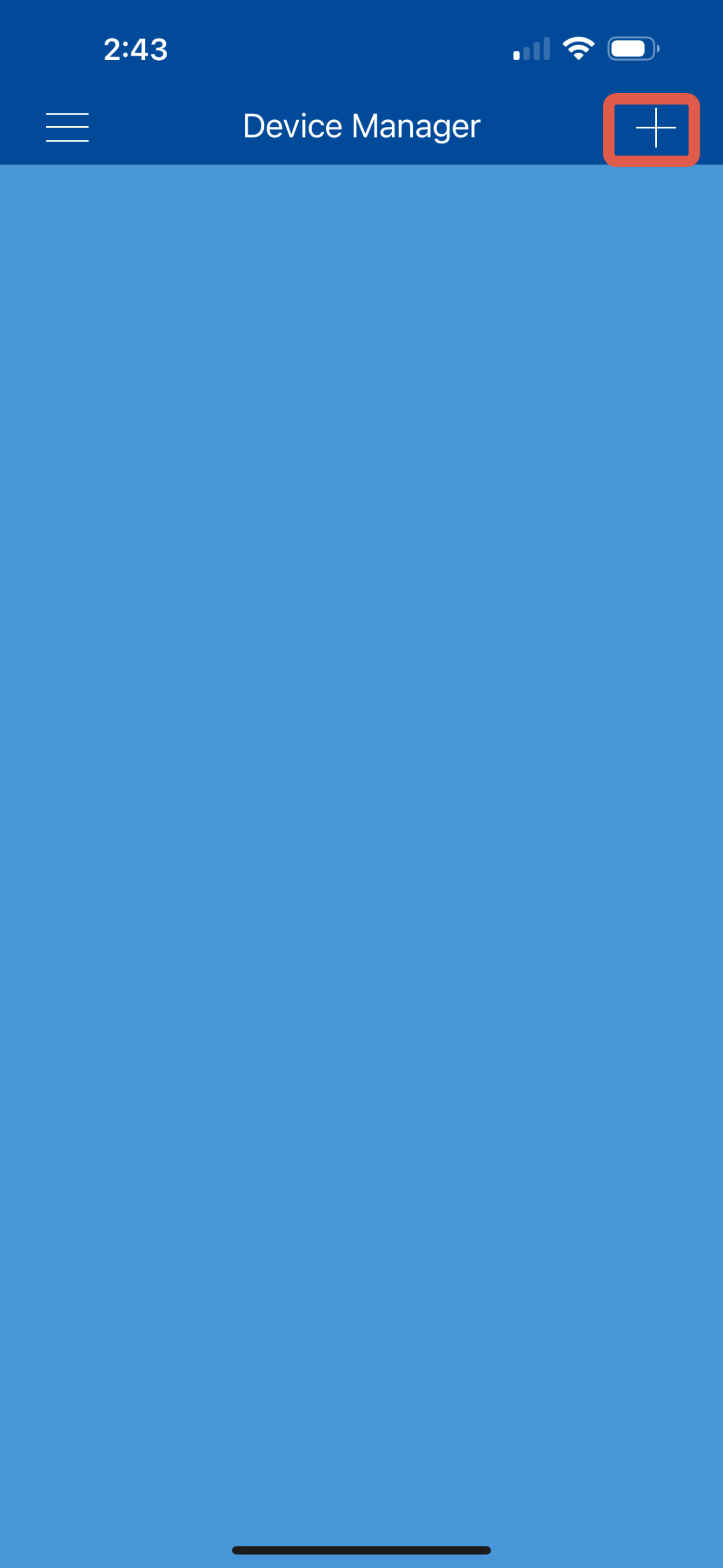
1. Tap the menu icon in the top left corner to begin setup.
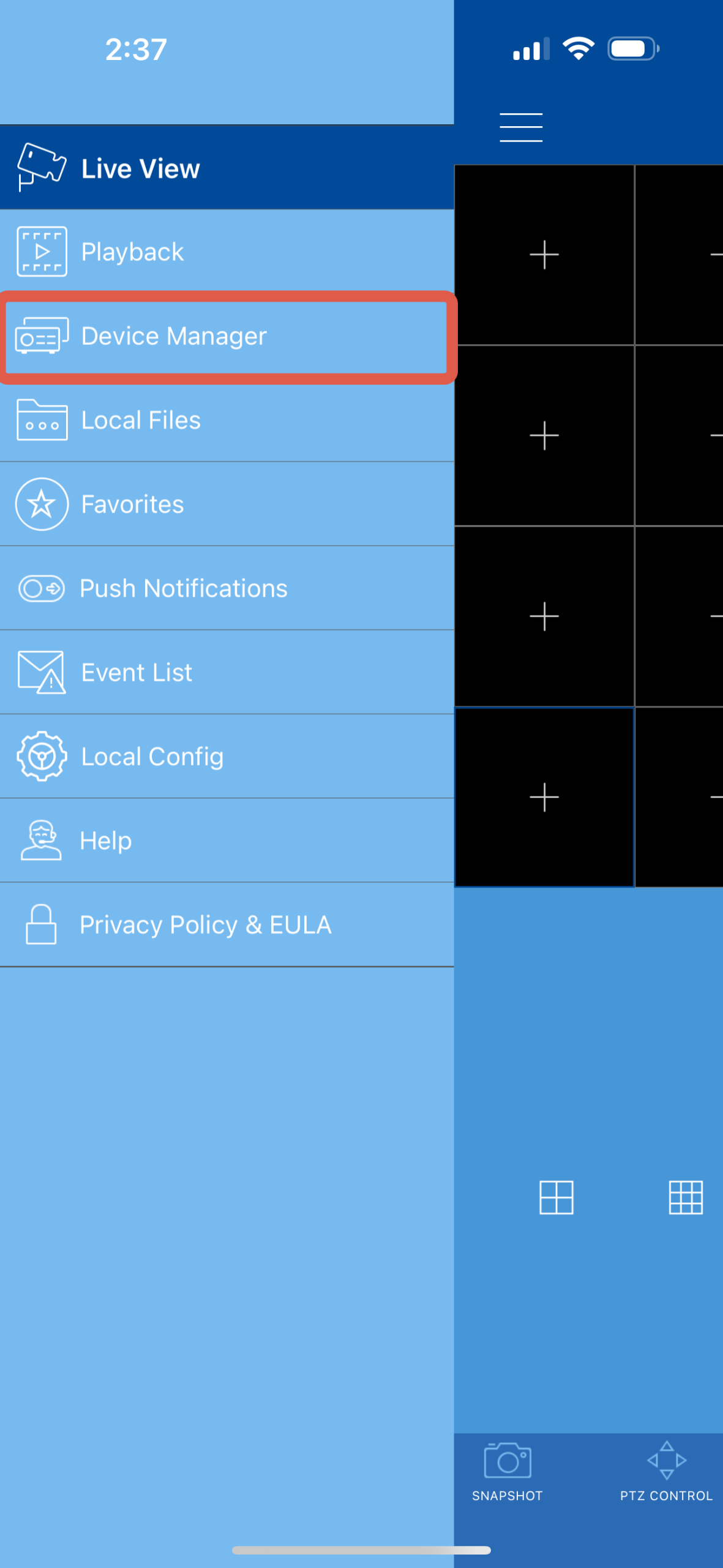
2. Select Device Manager
3. Tap on the Add + icon in the top right corner to add a device.
4. Select DVR/NVR/IP Camera

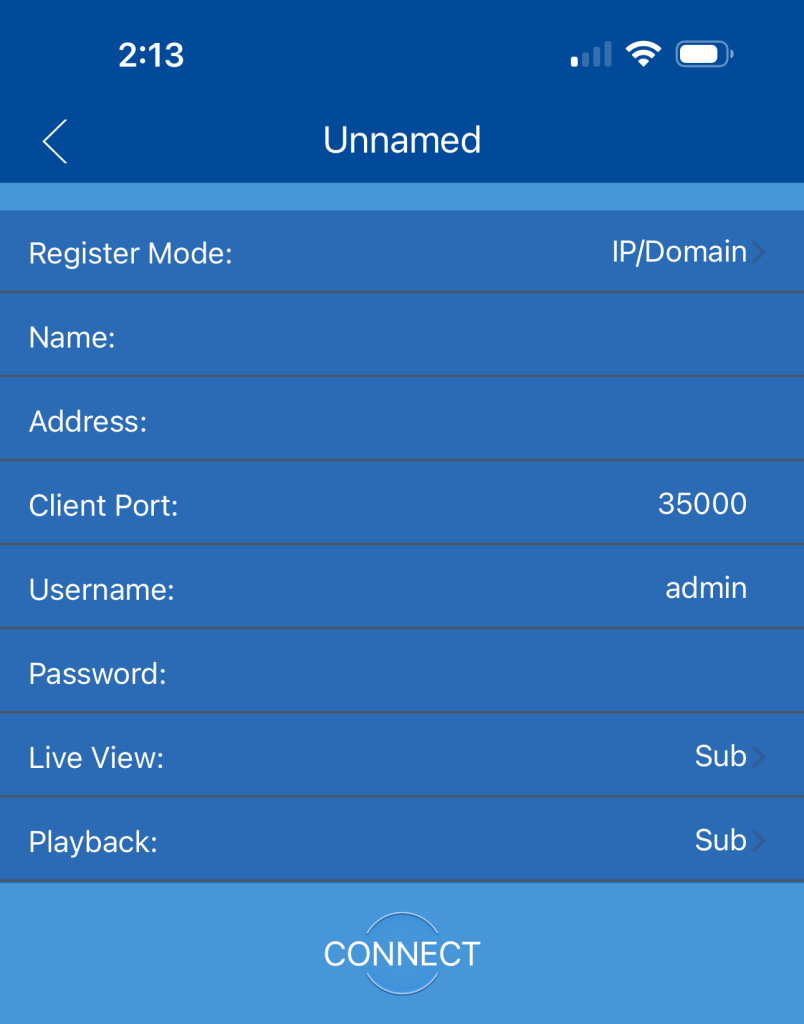
What to Enter on This Screen:
-
Register Mode:
Tap this field and select IP/Domain (instead of UID). This tells the app to connect using the device’s IP address or DDNS domain. -
Name:
Enter a name for the DVR/NVR device (e.g., “Warehouse Cameras” or “Main Office DVR”) — this is just for your reference. -
Address:
Enter the IP address or DDNS domain provided by your technician or admin. -
Client Port:
The Client Port will be provided by you tech. -
Username:
Enter the DVR/NVR login username. The default is usually admin. -
Password:
Enter the password provided by your tech. -
Live View & Playback Stream:
You can leave these set to Sub for smoother viewing on mobile (especially when on cellular data). Set to Main if you prefer full resolution, but note this may use more data. -
Connect:
Once all fields are filled in correctly, tap Connect to save the device and start streaming.
What Happens Next:
-
After tapping Connect, the app will attempt to authenticate and link to your device. Once successful:
-
The screen will refresh.
-
You’ll be automatically redirected to the Live View tab.
-
The connected cameras will begin loading and displaying in real time.
-
Live View Screen
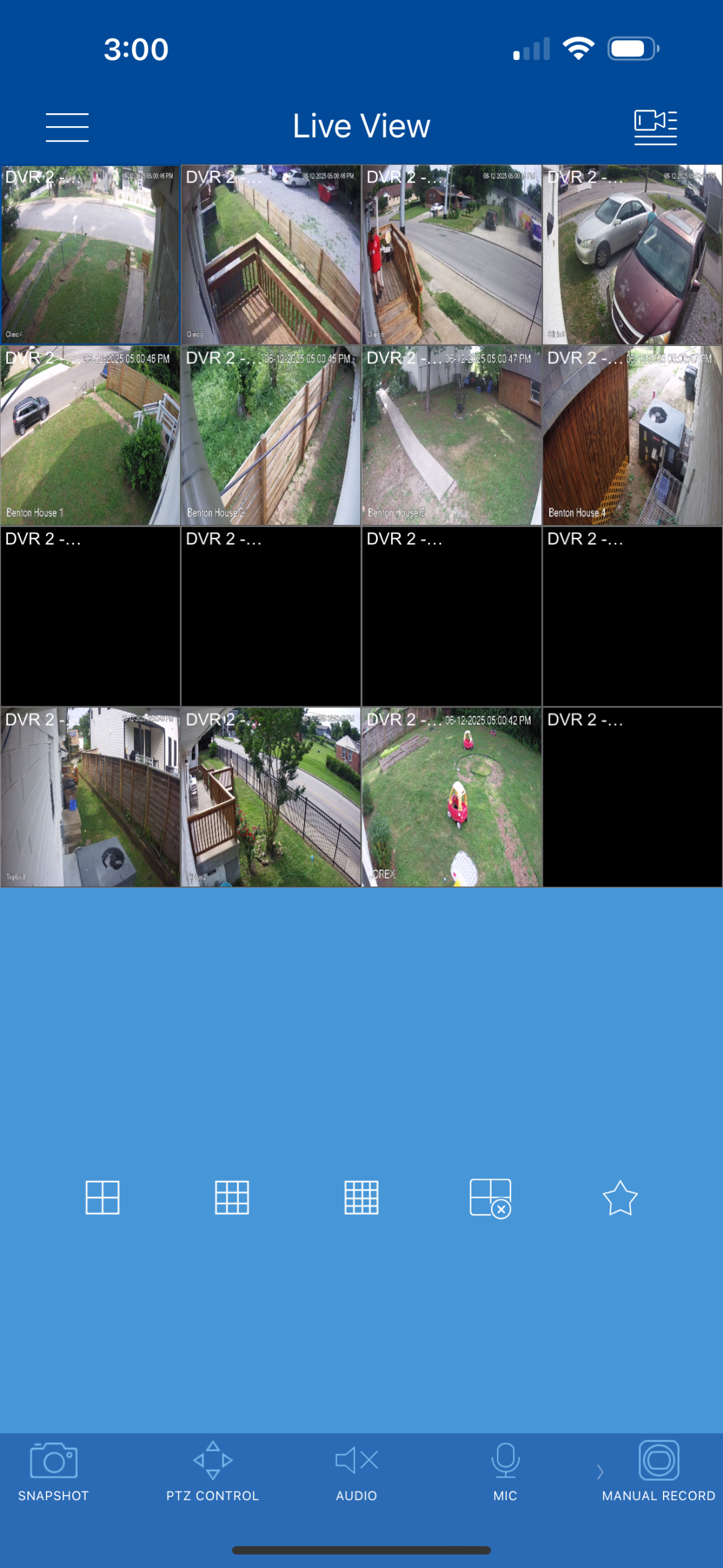
Once you’ve connected to your DVR or NVR system, you’ll be taken to the Live View screen where you can monitor real-time footage from all connected cameras.
What You’re Seeing:
-
Each box represents one connected camera feed.
-
Cameras that are offline, not responding, or not configured will display a black screen with “DVR 2 – …” or similar placeholder text.
-
You can tap any camera window to enlarge it for a full-screen view.
-
Rotate your phone for landscape orientation to view larger, side-by-side layouts.
Layout Options (Middle Icons):
-
Select how many camera views you want on screen at once:
-
1×1, 2×2, 3×3, or 4×4 grid views.
-
Tap the grid with an X icon to close all live feeds.
-
The star icon is typically used to save favorite layouts for quick access.
-

Bottom Toolbar Functions:
-
Snapshot: Captures a still image from the selected camera and saves it to your phone.
-
PTZ Control: Opens directional controls for cameras that support Pan-Tilt-Zoom.
-
Audio: Mutes or unmutes sound (if supported by the camera).
-
Mic: Activates your phone’s microphone for two-way audio (if supported).
-
Manual Record: Starts or stops local video recording on your mobile device.

PTZ Tab
-
If you’re viewing a camera that supports PTZ (Pan-Tilt-Zoom), you can control its movement and zoom capabilities directly from the app. To access PTZ features, tap the PTZ CONTROL button at the bottom of the Live View screen.
🕹️ PTZ Control Functions (Center Icons):
-
Zoom In/Out (+ / – symbol):
Use this to digitally zoom in on the live camera feed (if supported by the camera model). -
Pan/Tilt (Circular arrow or swipe):
Move the camera view left, right, up, or down by dragging on the screen or tapping the circular icon. This works only if the camera physically supports PTZ movement. -
Preset Positions (Flag icon):
Tap to access any saved preset camera positions. These are predefined angles or areas you can quickly switch between—great for monitoring entry points, parking lots, or doors with a single tap.
-

Menu Tab Breakdown:
1. Live View
-
This is your default landing screen.
-
View real-time footage from your connected cameras.
-
Customize your view using the grid icons below the feed.

2. Playback
-
Review recorded footage saved to the DVR/NVR.
-
Select date, time, and camera to play back footage.
3. Device List / Device Manager
-
Add, remove, or manage DVR/NVR systems.
-
Edit settings such as device name, IP address, port, and login credentials.

4. Local Files
View snapshots and manually recorded video clips that are saved directly to your mobile device. This does not pull from the DVR/NVR—it only stores what you saved through the app using features like Snapshot or Manual Record.

5. Favorites
Save custom camera views or layouts for quick access in the future.

6. Push Notifications
Enable or disable alerts for motion detection or system warnings. You can customize which cameras trigger alerts.

7. Event List
Enable or disable alerts for motion detection or system warnings. You can customize which cameras trigger alerts.

8. Local Config
Customize app settings, including video stream quality, save locations, and display options.

9. Help
Access support documentation, tutorials, or contact technical assistance.

10. Privacy Policy & EULA
Review the Lorex app’s privacy practices and end-user license agreement.
Need Help?
If you experience any issues setting up or accessing your Lorex Cloud mobile app, please contact your system installer or support team for assistance.