
On this page
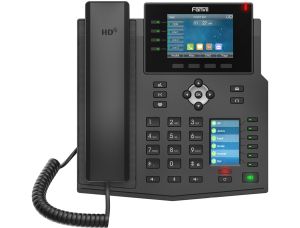
The Fanvil X5U boasts two color displays and newly integrated line keys with LED lights, granting users immediate access to instructions, thus enhancing flexibility and productivity to meet various business requirements. With its Harman speaker and G.722 and Opus wideband codec support, this device ensures an immersive HD audio experience, delivering exceptional clarity across high and low bandwidth networks.
Keypad Instructions
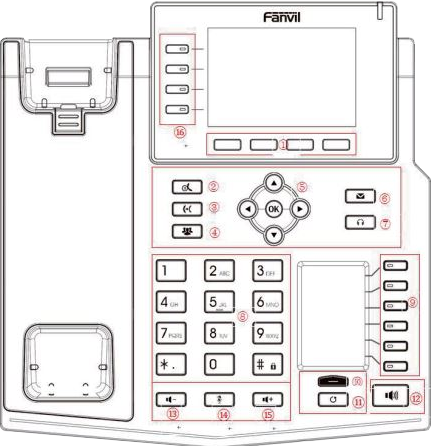
Soft-menu Buttons

These four buttons provide different functions corresponding to the soft-menu displayed on the screen.
Hold Key

Press the “Hold” key during the call, the user can hold the call, and press it again to cancel the holding and restore the normal call state.
Transfer Key

Press the “Transfer” button, the user can transfer the current call to other numbers.
Conference

Press the “Conference” button, the user can initiate a three-party conference.
Navigate/OK Keys

Use up/down keys to change lines/cursor. On certain pages, left/right keys adjust options/cursor. OK key: Default is soft button confirmation; customize the function.
Voice mail

Press the “Voice mail” button, and the user enters the interface of SMS and voice mail list.
Headset Key

Users can press this key to open the headset
Standard Telephone Keys

12 standard telephone keys offer both standard and special functions. For instance, long-pressing Key # locks the phone.
DSS Key

Long press DSS key to enter the settings interface and set the required functions.
Next Page Key

Users can switch the second screen page in turn
Redial

Press the Redial key to redial the last number dialed.
Hands-free Key

The user can press this key to open the audio channel of the speakerphone.
Volume Down Key

In the standby state, ring and ring configuration interface, press this button to reduce the ring volume; Press this button to lower the volume on the call or volume adjustment screen.
Mute Key

During a call, the suer can press this key to mute the microphone.
Volume Up Key

Press this button to increase the ring volume in standby or ring configuration interface. It also adjusts call volume on the call or volume adjustment screen.
Side Key

Long press the side key to enter the settings interface and set the required functions.
How to Perform Functions During a Call
How to Transfer a Call
1. During a phone call, select the Transfer button.
2. Select who you want to transfer in the quick dial list, or enter the extension number, or enter in the number you wish to transfer them to.
Note: If transferring to an outside phone number then the user will have to select the Transfer button again after entering the phone number.
How to Conference Call
1. During a phone call, select the Conferencebutton.
2. Select the contact, or dial the extension of the contact and select Confirm.
3. Once the 3rd party answers the call, select the Conference button again to establish the 3-way call.
Note: to add more users to the conference call, follow steps 2 and 3 again.
How to Set Up/Change Greeting Message
1. Select the Voicemail button.
2. Select 8 to change the greeting message.
3. Select 0 to record new greeting message.
3. Record the message then press #.
4. To save the message, press 0.To repeat the message, press 1.