
On this page
How to Record a New Prompt (Voice Message)
Understand the Prompt
The prompt is the message customers hear when they call in.
This can be used to provide instructions, such as leaving a message or choosing from a list of options.
1. Navigate to Prompt Settings
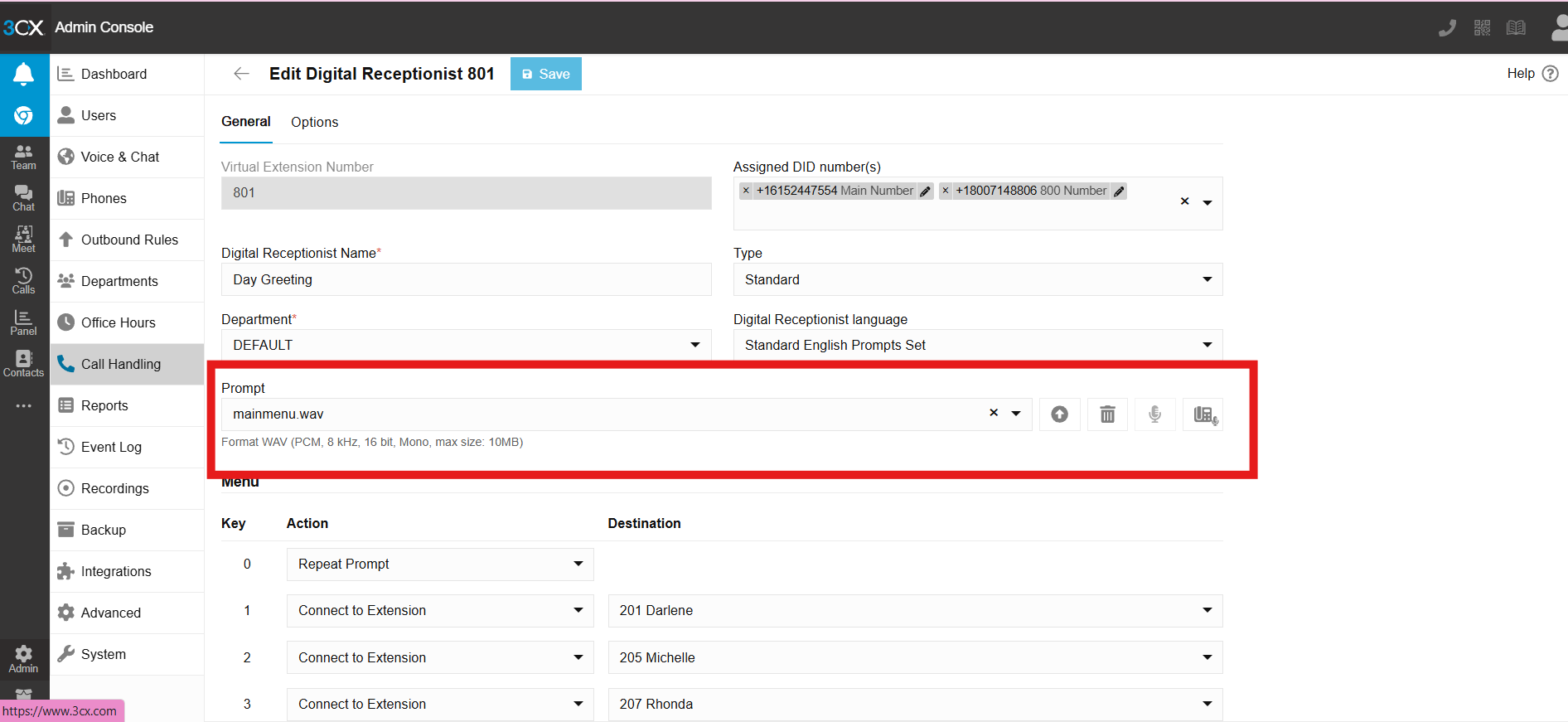
- In the Line or User Settings, scroll to the section labeled ‘Prompt’.
2. Choose or Record a Prompt
- You can select an existing prompt from the available list, or record a new one.
3. Record New Prompt Button
-
- Click the handset icon next to the prompt settings.

4. Name Prompt and Initiate Recording
-
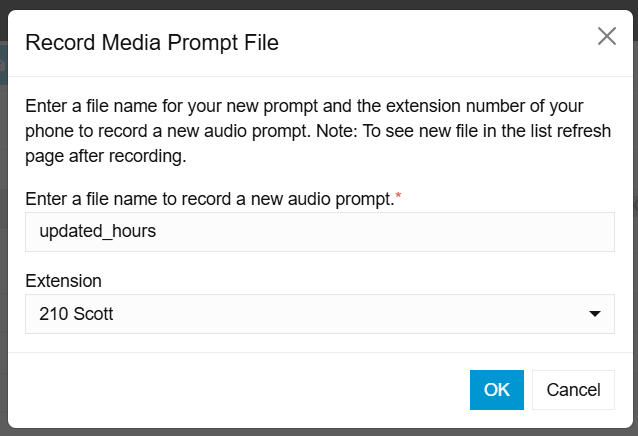
- Give the prompt a clear and descriptive name for easy identification.
- Choose the extension you want to use for recording the message (e.g., your own phone or another line).
- 3CX will immediately call the selected extension.
5. Receive the Call to Record
-
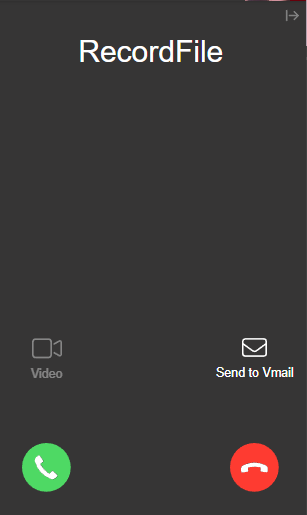
- 3CX will immediately call the selected extension from RecordFile.
- Answer the call and follow the instructions to record your message.
6. Save and View Your Prompt
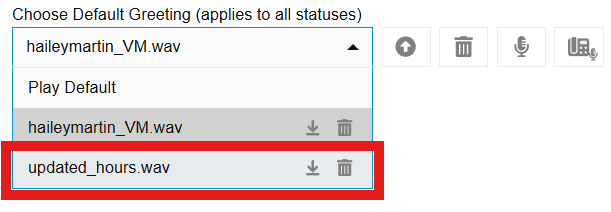
- Once you’ve successfully recorded your prompt, it will now appear in the Prompts List.
- You can select it from this list whenever you need to assign it to a line or feature.
How to View Call Logs in 3CX
1.Open the Settings Menu
- Click on the cogwheel icon in the left-hand menu to open the settings options.

2.Navigate to Reports
- From the settings menu, select ‘Reports’.
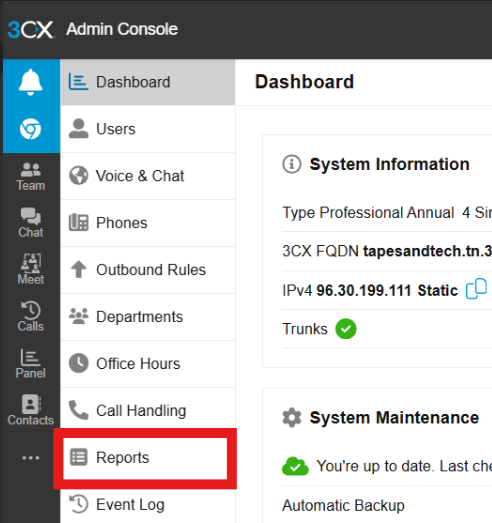
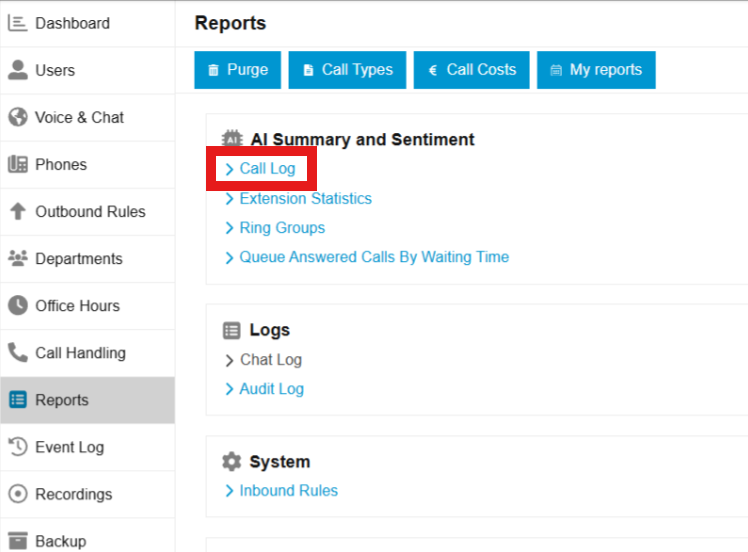
3. Open the Call Log
- Under the ‘AI Summary and Sentiment’ section, click on ‘Call Log’.
- This will take you to the detailed log of all calls.
4. Filter the Call Log
- At the top of the page, use the filters to customize your view:
- Date Range: Select a specific time frame for the logs you want to see.
- Call Type: Filter by missed, incoming, or outgoing calls.

5. Export or Print Logs
- To save or share the data:
- Click ‘Export’ to download the call log as a file.
- Click ‘Print’ to generate a physical copy of the report.


How to Set Holiday Hours in 3CX
1. Open the Settings Menu
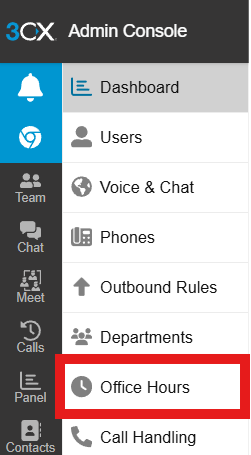
- Click on the cogwheel icon (Settings) in the left-hand menu.
2. Go to Office Hours
- From the settings menu, select ‘Office Hours’.
- This is where you can manage and configure holiday hours for your system.
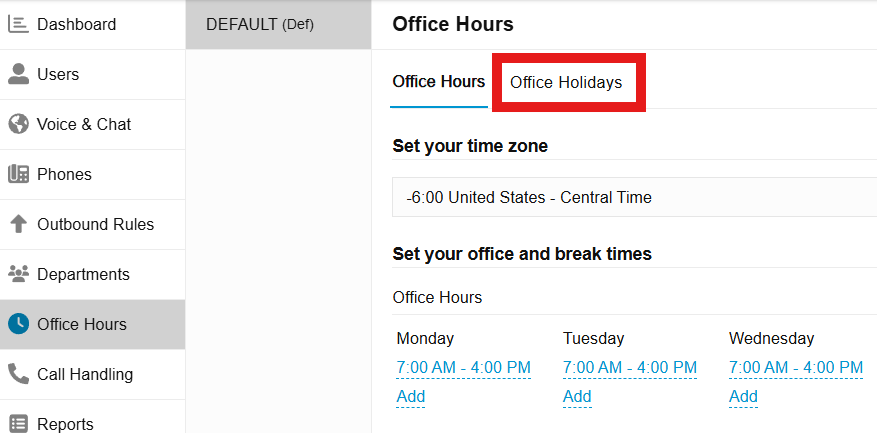
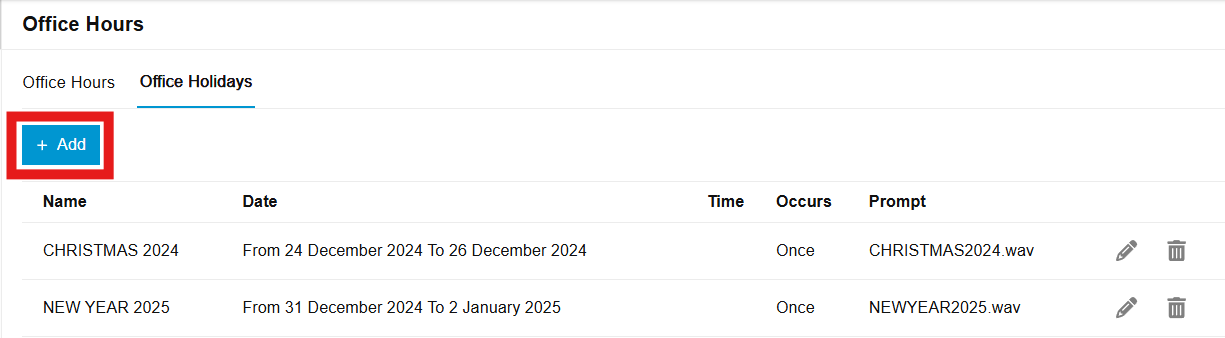
3. Select Office Holidays
- Once in the Office Hours section, click on ‘Office Holidays’ to manage and configure your holiday settings.
4. Add a New Holiday
- Under the Holidays section, click on ‘Add’.
- A new window will appear where you can input holiday details.
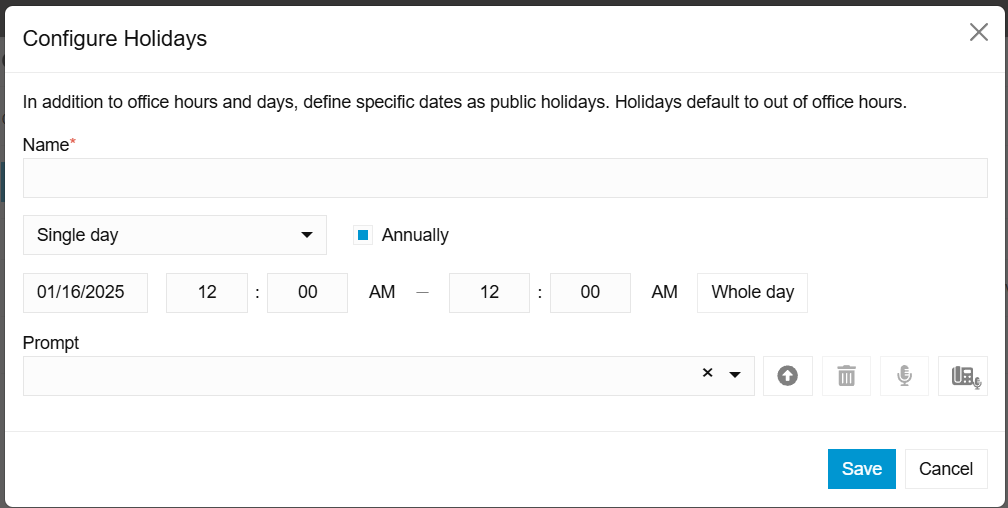
5. Enter Holiday Details
- Fill in the fields with the following information:
- Name: Give your holiday a clear name, like “New Year’s Day.”
- Date: Select the specific date or range of dates for the holiday.
- Time: Choose whether the holiday applies to the entire day or specific hours.
- Recurrence: Decide if this holiday will occur annually or as a one-time event.
- Prompt:
- Select an existing message or record a new one (refer to our guide on how to record a prompt).
- If recording a new prompt, choose the extension you’ll use, and 3CX will guide you through recording the message.
- Once all details are entered, click ‘OK’ or ‘Save’ to confirm the holiday settings.
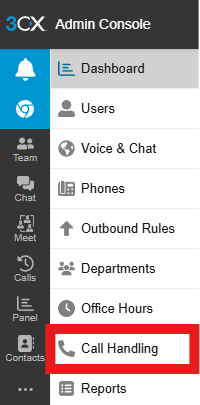
6. Configure Call Handling for the Holiday
- Go to the Call Handling section.
- Select the Holiday (or other appropriate option) and assign the appropriate prompt.
7. Decide on Call Routing
Determine how calls should be managed during the holiday:
Should customers be directed to a voicemail?
Should calls be forwarded to a directory or specific extension?
Once you decide, email us at [email protected] so we can ensure your call routing is correctly configured.