
On this page
- Yealink Phones User Guide
- Yealink T29G Keypad Visual User Guide
- Understanding the Yealink T29G Phone Light Colors
- Line Status Colors
- DND Status Colors
- How to Perform Call Functions on Yealink T29G Phone
- Placing a Call
- Answering a Call
- Placing a Call on Hold
- Starting a Conference Call
- Transferring a Call
- Parking a Call
- Retrieving a Parked Call
- Paging
- Initiating an Intercom Call
- Hot Desking
- Recording a Call
- Do Not Disturb (DND)
Yealink Phones User Guide
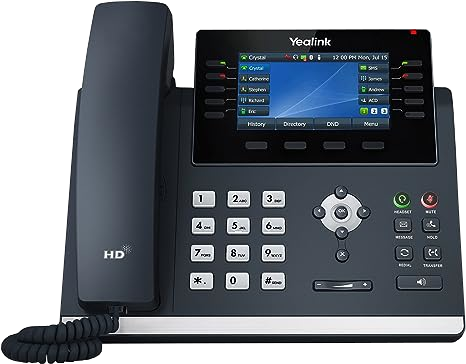
Explore the Visual User Guide for Yealink T46U and T29G phones – your comprehensive resource for harnessing the power of these advanced IP phones designed for modern businesses. The Yealink T46U and T29G boasts a wealth of features, including HD audio, a vivid color touchscreen, support for multiple lines, programmable keys, comprehensive call management tools, enhanced security, seamless voicemail access, and seamless integration with VoIP platforms. This Yealink Phones User Guide equips you to fully understand how to use the Yealink T46U and T29G.
Yealink T29G Keypad Visual User Guide
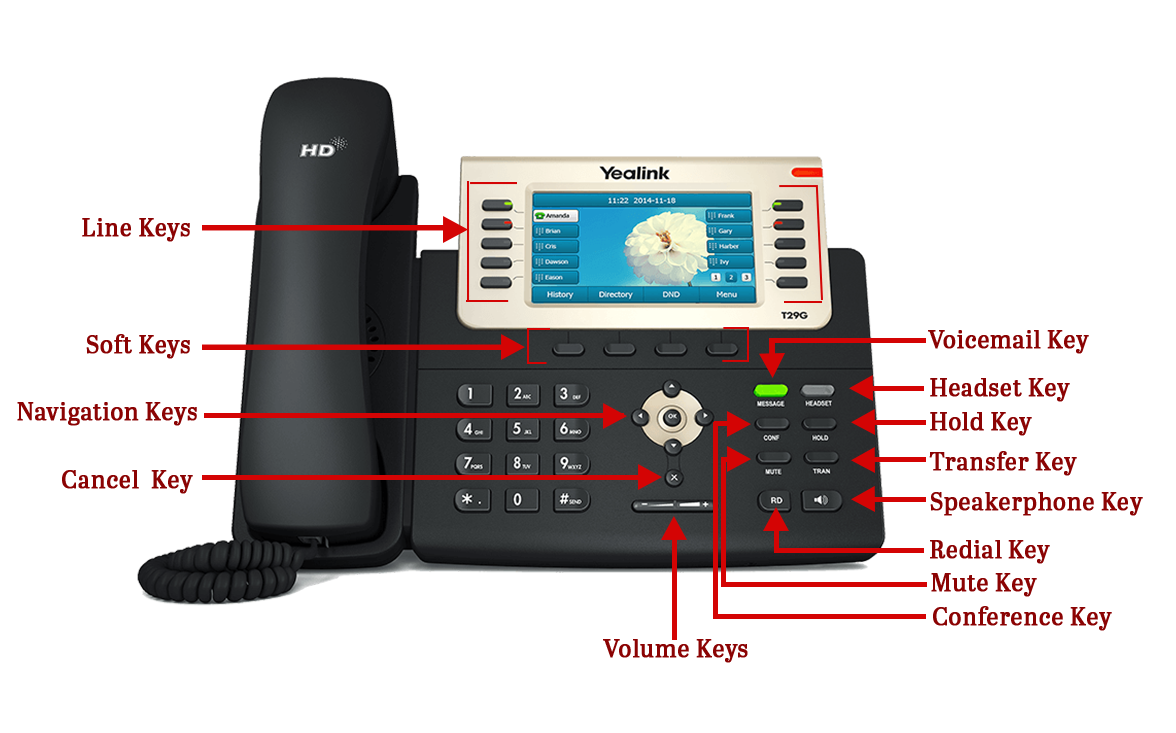
Line keys
Allows you to choose a phone line, see calls associated with a line, or rapidly dial a favorite contact.
Soft keys
Allows you to choose contextually relevant keys that appear along the lower edge of the screen.
Navigation keys
Navigates through the information and choices visible on the phone screen.
Cancel key
Aborts an action or declines incoming calls.
Volume key
Modulates the volume of the handset, headset, and speaker.
Headset key
Enables you to make and receive calls using a headset
Mute/Unmute key
Silences audio during calls and conferences.
Hold key
Pauses an ongoing call or resumes a paused call.
Voicemail key
Allows you to retrieve voicemail messages.
Transfer key
Move an ongoing call to a specific contact.
Redial key
Allows you to call the most recent dialed number or extension
Speakerphone key
Allows you to initiate and accept calls using the speakerphone.
Understanding the Yealink T29G Phone Light Colors

Line Status Colors
Green
The line is available for calls
Red
Line is currently on a call
Red Flashing
Line is Ringing
DND Status Colors
Green
The line is ready and available for calls
Red
Line Set to DND (Do Not Disturb)
How to Perform Call Functions on Yealink T29G Phone
Placing a Call
Dial the number and do one of the following: • Lift the receiver to use the handset phone • Press the Headset key use the headset. • Press the Speakerphone key use the speakerphone.
Answering a Call
Options: • Lift the receiver to use the handset phone. • Press the Headset key to answer a call via headset. • Press the Speakerphone key to answer a call via speakerphone.
Placing a Call on Hold
Press the Hold key to place the call on hold and press it again to retrieve the held call.
Starting a Conference Call
1. While on an active call, press the Conference soft
key.
2. Dial the extension of the other party that you would
like to add to the call and press OK, #,or the Send soft key.
3. Once the other party answers, press the Conference
soft key to join all parties in the conference.
Transferring a Call
Semi-Attended Transfer:
- During an ongoing call, press the Transfer soft key.
- Enter the number or extension of the second party.
- Press OK or # to dial out.
- Once you receive the ringback, select Transfer
Blind Transfer:
- While engaged in an active call, press the Transfer soft key.
- Enter the number or extension of the third party.
- Press the Transfer soft key again.
Attended Transfer:
- Press the Transfer soft key.
- Enter the number or extension of the second party.
- Press OK or # to dial out.
- Attend the call. When ready to pass the fall over, select the Transfer key.
Parking a Call
Option 1:
- During an ongoing call,press the Park soft key (You may need to press the More soft key to see the
Park soft key) - . Press the desired BLF key to park the call to the monitored user.
Retrieving a Parked Call
1. Press the Retrieve soft key on the dialing screen.
2. Press the desired BLF key to retrieve a call that is parked to the monitored user.
Paging
1. Select PageNow
2. Select End Call once done paging.
Initiating an Intercom Call
1. Press the intercom key.
Hot Desking
- Select the Hot Desking soft key.
- You will see a pop-up saying “Clear your account config?” – Select OK
- Enter in your login information
- Select Save.
Recording a Call
• During an ongoing call, press Record to initiate recording.
• Press Record again to conclude the recording.
Do Not Disturb (DND)
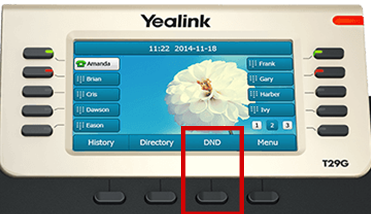
• Using the Softkeys, select the softkey located under DND
In conclusion, this Visual User Guide has provided you with an insightful journey through the powerful features and functionalities of the Yealink T46U IP phone. With its HD audio, intuitive touchscreen, versatile line support, programmable keys, and robust call management capabilities, the Yealink T46U stands as an exceptional communication solution for modern businesses. By integrating seamlessly with VoIP platforms and offering enhanced security and voicemail access, this phone ensures a streamlined and secure communication experience. As you navigate the customizable options and flexible connectivity features highlighted in this Yealink Phones User Guide, you’re equipped to harness the full potential of the Yealink T46U and elevate your professional communication endeavors.